

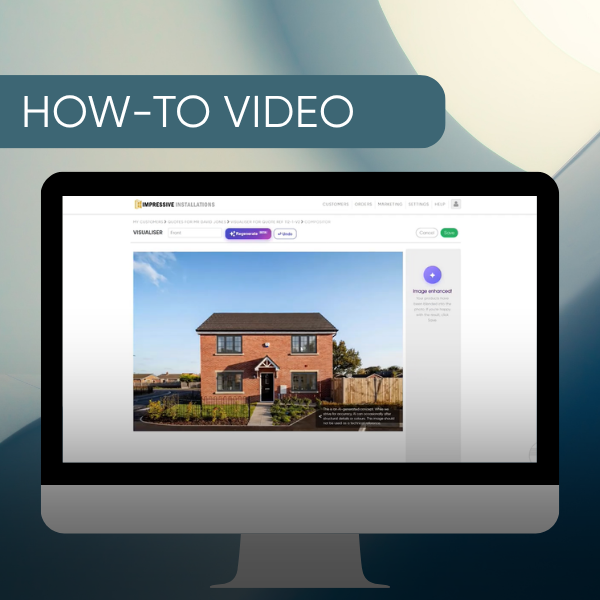
Create Stunning True-to-Life Makeovers
Video Transcript:
Hello. I want to share an exciting enhancement we've brought to the Visualizer.
We call it Bring It to Life, and I'm going to show you how this works. I have a quote here that I've already started. And here are some items.
I'm going to click on the Visualizer, and I've got an image of the customer's house ready to go. I'm going to click on this.
Now, the first difference you're going to notice is we now have this Bring It To Life button. So let's get started. We still need to add our items, the image, and resize, like so.
Once you're happy with that, go ahead and click Bring It To Life.
And there you go. So we have a couple of options here. If you're not quite happy with the layout of your items and you want to reorganize those, you can simply click Undo, and move that slightly, and then click Bring It To Life again.
And there we go. And if you're not quite happy with the look of the windows that the AI has generated, there's no need to click Undo. You can just click Regenerate.
This feature uses cutting-edge generative AI to build photorealistic images. While it usually creates absolute magic, AI can occasionally misinterpret a photo and cause minor visual glitches. Whenever this happens, just simply click Bring It To Life and regenerate the image.
And there we go. I'm happy with that. So I'm just going to go ahead and click Save. And there's our completed image. We can always revisit that. And if you want to regenerate it, simply click Undo and click Regenerate. But we're happy with that, so we're going to move on to the next step.
You can download a standalone image, like so. Or you can go ahead and process your quote as you normally would and attach the Visualizer image to the start.
And there's our finished quote. And that's it.