

Set Multiple Discounts & Adjustments

Set Multiple Discounts & Adjustments

13.10.2026

‍

Multiple Discounts Video Transcript

In this video, we'll show you how to add more than one discount and more than one adjustment to a Tommy Trinder quote.

You can now add up to two adjustments and up to three discounts on any quote. Each one has its own name, and you choose which ones your customer sees.

Here's a finished quote for eight windows and doors.

To open the pricing panel, tap the pricing switch just above your items. Underneath your items, you'll see the quote totals.

An adjustment is a fixed amount in pounds, added to or taken off the price. A discount is a percentage.

Right now, this quote comes to £9,000, including VAT.

Adjustments are handy for one-off charges that aren't products, like out-of-hours fitting or travel to a job outside your usual area.

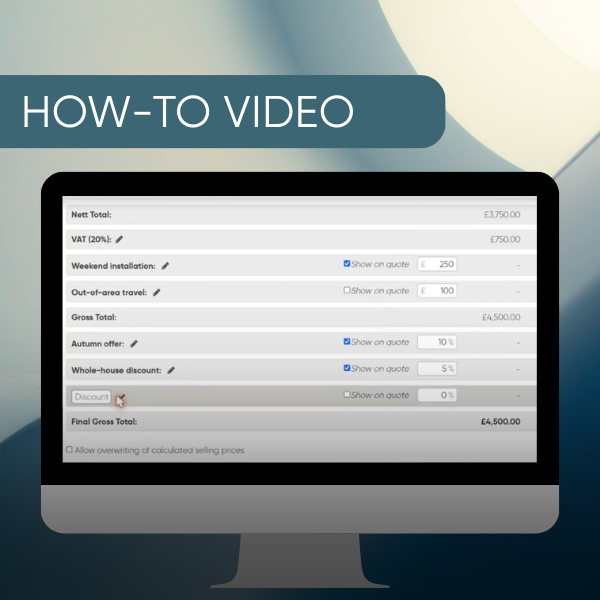
In this example, the customer wants the job fitted on a Saturday, so we'll add a charge for weekend installation.

Tap the pencil next to Adjustment, type a name, then tap the tick to save it. Use a name your customer will understand, because this is what they'll see on their quote.

Next, tap the pound box and enter the amount – here, £250. Then tick ‘Show on quote’ so this line appears on the customer's PDF.

The gross total has gone up to £9,250.

To add a second adjustment, tap the green plus. A new row appears underneath. Our example here is out-of-area travel at £100.

This time, leave ‘Show on quote’ unticked. That's useful for costs you want built into the price without listing them separately. The £100 is still included, but your customer won't see it as its own line.

Two adjustments is the maximum, so the plus disappears.

Now for the discounts. They work the same way, but as a percentage.

You might use a discount for a seasonal promotion, like an autumn offer.

Tap the pencil next to Discount, give it a name and enter the percentage – here, 10%. Tick ‘Show on quote’ so your customer can see the saving.

That takes £935 off.

Tap the green plus to add a second discount. A second discount could reward a bigger order, like a whole-house discount. Here we'll enter 5% and tick ‘Show on quote’.

Then tap the plus once more for a third discount.

A third discount is useful for something the salesperson agrees on the day to close the sale, like a manager's discretion discount. We'll enter 3% and leave it unticked, so it stays internal.

Three discounts is the maximum.

The final gross total is now £7,667.

So, how do the discounts combine?

Each one is worked out on the same total, so they simply add up. 10 + 5 + 3 is 18% off £9,350. The order you enter them in makes no difference.

If your user profile has a maximum quote discount, it now applies to all your discounts added together, not to each one on its own.

So, with a limit of 15%, 10 + 5 would be fine, but 10 + 5 + 3 would not.

Now let's check what your customer sees.

Tap the eye icon at the top right to preview the quote PDF. Previewing doesn't lock or send the quote. When it's ready, tap it again to open the preview.

The lines you ticked are shown: the weekend installation, the autumn offer and the whole-house discount.

The travel charge and the manager's discount aren't listed. They're already included in the figure at the top, so every line still adds up.

And the final price, £7,667, matches your pricing panel exactly.

Back in the pricing panel, here's a quick recap.

Tap the pencil to name a row, the green plus to add another, and tick ‘Show on quote’ to put it on the customer's PDF.

You can have up to two adjustments and three discounts, and you can name them however suits your business. The ones in this video are just examples.

Quotes with a single discount work exactly as before.

If you have any questions, just send us a message using the chat button.

‍

‍

Download .PDF

Set Multiple Discounts & Adjustments

Learn how to add multiple discounts and adjustments to a Tommy Trinder quote, name them, choose which your customer sees, and manage your overall discount limit.

‍

Multiple Discounts Video Transcript

In this video, we'll show you how to add more than one discount and more than one adjustment to a Tommy Trinder quote.

You can now add up to two adjustments and up to three discounts on any quote. Each one has its own name, and you choose which ones your customer sees.

Here's a finished quote for eight windows and doors.

To open the pricing panel, tap the pricing switch just above your items. Underneath your items, you'll see the quote totals.

An adjustment is a fixed amount in pounds, added to or taken off the price. A discount is a percentage.

Right now, this quote comes to £9,000, including VAT.

Adjustments are handy for one-off charges that aren't products, like out-of-hours fitting or travel to a job outside your usual area.

In this example, the customer wants the job fitted on a Saturday, so we'll add a charge for weekend installation.

Tap the pencil next to Adjustment, type a name, then tap the tick to save it. Use a name your customer will understand, because this is what they'll see on their quote.

Next, tap the pound box and enter the amount – here, £250. Then tick ‘Show on quote’ so this line appears on the customer's PDF.

The gross total has gone up to £9,250.

To add a second adjustment, tap the green plus. A new row appears underneath. Our example here is out-of-area travel at £100.

This time, leave ‘Show on quote’ unticked. That's useful for costs you want built into the price without listing them separately. The £100 is still included, but your customer won't see it as its own line.

Two adjustments is the maximum, so the plus disappears.

Now for the discounts. They work the same way, but as a percentage.

You might use a discount for a seasonal promotion, like an autumn offer.

Tap the pencil next to Discount, give it a name and enter the percentage – here, 10%. Tick ‘Show on quote’ so your customer can see the saving.

That takes £935 off.

Tap the green plus to add a second discount. A second discount could reward a bigger order, like a whole-house discount. Here we'll enter 5% and tick ‘Show on quote’.

Then tap the plus once more for a third discount.

A third discount is useful for something the salesperson agrees on the day to close the sale, like a manager's discretion discount. We'll enter 3% and leave it unticked, so it stays internal.

Three discounts is the maximum.

The final gross total is now £7,667.

So, how do the discounts combine?

Each one is worked out on the same total, so they simply add up. 10 + 5 + 3 is 18% off £9,350. The order you enter them in makes no difference.

If your user profile has a maximum quote discount, it now applies to all your discounts added together, not to each one on its own.

So, with a limit of 15%, 10 + 5 would be fine, but 10 + 5 + 3 would not.

Now let's check what your customer sees.

Tap the eye icon at the top right to preview the quote PDF. Previewing doesn't lock or send the quote. When it's ready, tap it again to open the preview.

The lines you ticked are shown: the weekend installation, the autumn offer and the whole-house discount.

The travel charge and the manager's discount aren't listed. They're already included in the figure at the top, so every line still adds up.

And the final price, £7,667, matches your pricing panel exactly.

Back in the pricing panel, here's a quick recap.

Tap the pencil to name a row, the green plus to add another, and tick ‘Show on quote’ to put it on the customer's PDF.

You can have up to two adjustments and three discounts, and you can name them however suits your business. The ones in this video are just examples.

Quotes with a single discount work exactly as before.

If you have any questions, just send us a message using the chat button.

‍

‍

More from Tommy's Toolkit

Affordable plans with no big outlay.

And we can have you set up in minutes!

#SellMoreWindows