

From Quote to Signed Contract in Minutes
Video transcript:
Hello. I'm excited to share with you a new feature we've brought to Tommy Trinder, e-sign off, giving your customers and users the ability to sign contract documents.
Let me show you how this works. First of all, we need to change a setting. I click on Settings, Pricing and Quoting, and then click on Contract. Now, we need to check this box here that says, "Allow e-sign off of contracts." Click Save, and that's been updated.
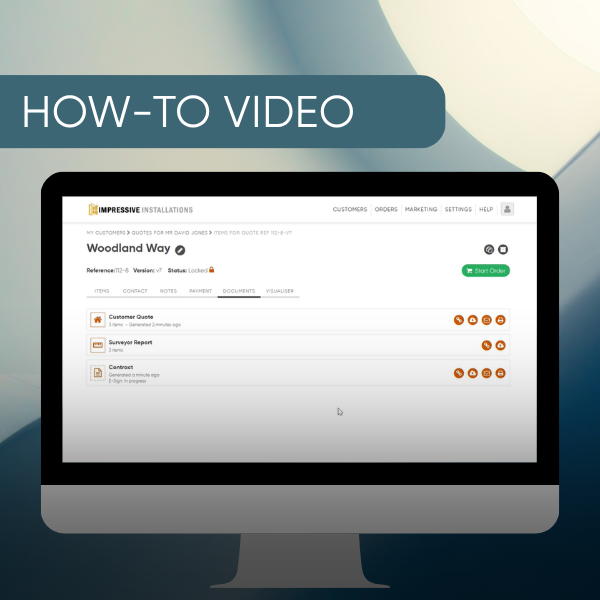
I'm now going to head to a customer. I have a quote here. It's already been prepared, and the customer would like to proceed with the contract. So as before, click on the download icon here. Continue. Okay, that's now been downloaded.
The first thing you will now notice is this new message here, "e-sign not sent," and a new icon over on the right here, a signature icon. To send the contract, click on this. You'll see this message, which shows the customer email and the email of the salesperson. First, the customer signs, and then the salesperson counter-signs. Go ahead and click Go, and that will now send the contract to your customer.
You can now see the status is updated to ESign in progress.
Let me show you what the customer sees. Okay. I'm now the customer, and I've just received this email from Tommy. To sign this contract document, the customer should click here where it says, "Please click here to sign the contract for Mr. David James." Customer can click on this. Scroll down to the signature field. Click in here. You can draw, type, or upload a signature. I'm just going to type. Click Confirm, and Submit.
Okay, the customer has now signed the contract. You will now see the status has updated. ESign in progress, received signature from customer.
Now that's been done, the salesperson needs to sign the contract. Let me show you how that works. Okay, I'm now the salesperson, and this is the email I've received to sign the contract. Again, click here. This will open the contract document. Scroll down. You'll notice the customer signature here on the left. I'm the salesperson, so I'm going to click in this box and type my signature. Click Confirm and Submit.
Okay, the signing process is now complete. Once both parties have signed, your customer will receive the contract PDF signed by both parties. Let me show you how this looks.
I'm now the customer, and I've just received this email. I can click here to download a copy of the signed document. And here it is, the signed contract by both parties.
I'll just head back to Tommy, and you can now see the status has updated to Signed Off. And that's it.