

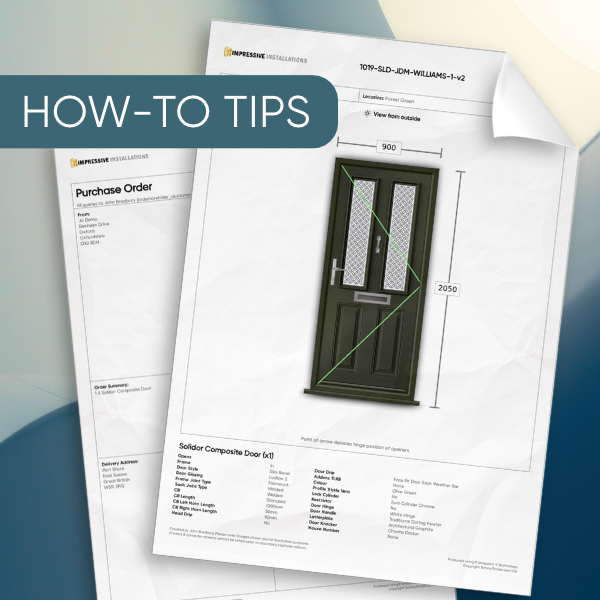
Create Purchase Orders in Minutes

Create Purchase Orders in Minutes

19.11.2026

To raise a purchase order (PO) in Tommy Trinder, open the approved quote and click Start Order. Choose the items for each supplier, add your delivery details, then download the PO as a PDF or send your supplier a link. It works for every supplier you use.

One of our subscribers, a proper Tommy pro, told us something that stopped us in our tracks. He thought the Start Order button was only for preset suppliers like Bereco, Roseview and AWG. So for every other supplier, he'd been doing his POs the long way.

When we showed him he could raise POs for all his suppliers from the same button, it was a bit of a revelation. If he didn't know, plenty of you might not either, so here's a quick how-to.

‍

What Start Order actually does

Once you've sent the quote and your customer has approved it, the quote is locked and you're ready to generate all the other paperwork you need for the job.

Clicking Start Order opens up a new screen where you can either select all the items in the quote, or split them if you're using multiple suppliers.
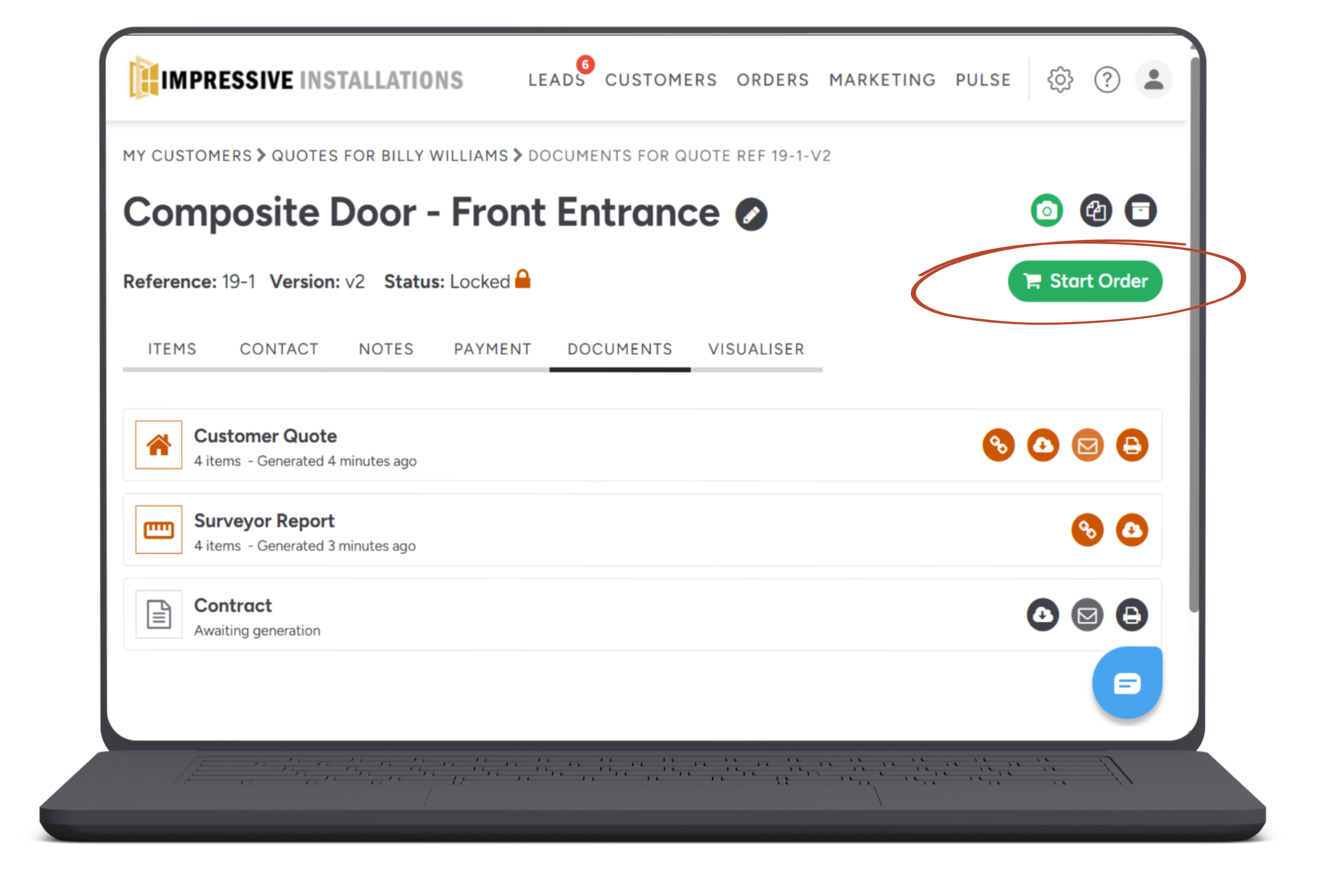
Click Start Order to generate a purchase order

Once you've added the items, hit Create Order to add all the important info like the delivery address and date plus any special notes, and bingo, your purchase order PDF is now ready to download and send to your supplier (or you can simply send them the link).
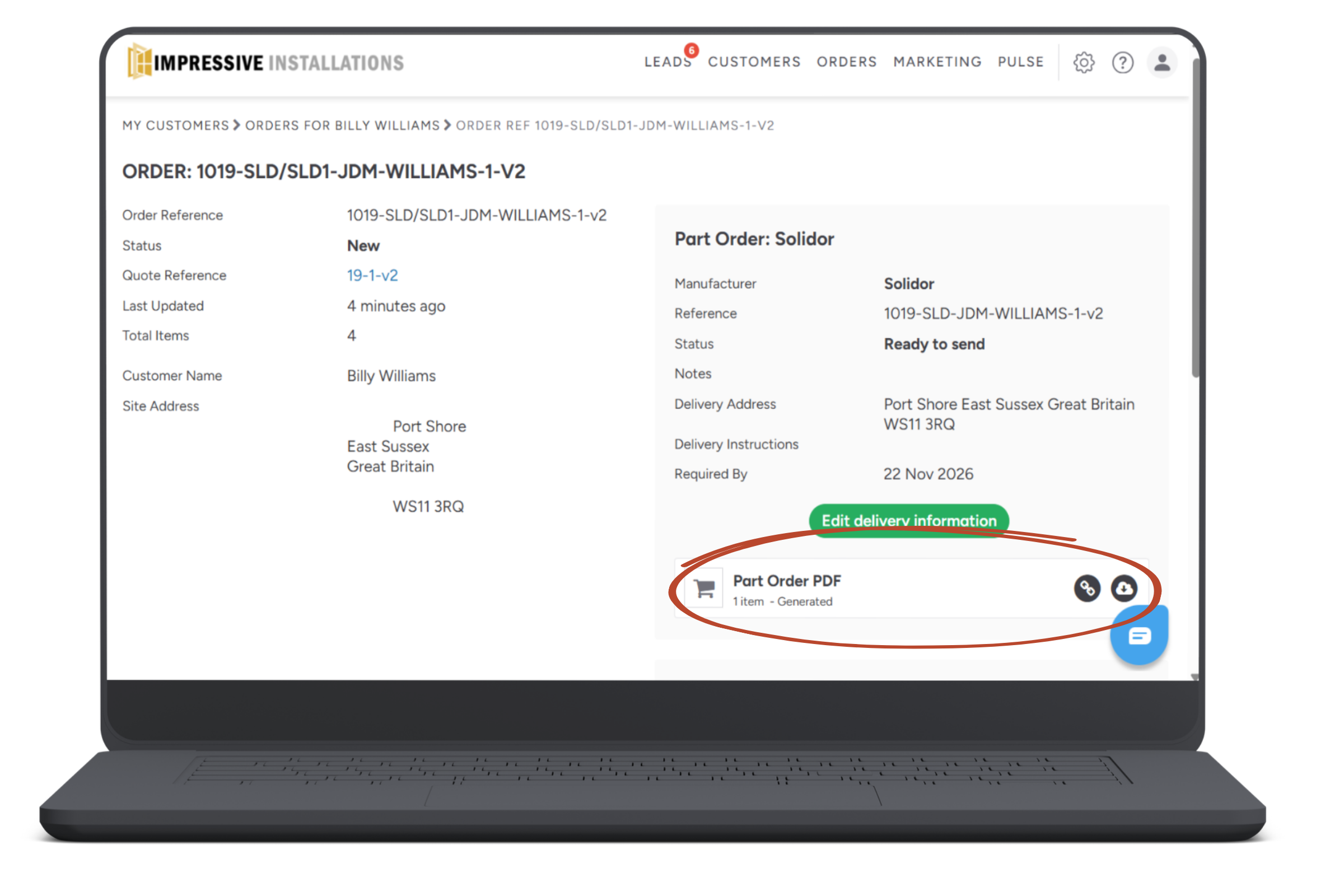
Order screen in Tommy with delivery information and the purchase order PDF

‍Save time, minimise error

If you’re typing up a PO for each supplier on every job, you’re redrawing and re-keying the same details over and over. It’s slow work, and it’s easy to make mistakes. One missed detail can cost you dearly further down the line.

For the manufacturers in Tommy like Roseview, Bereco and AWG, you have a further option to send the purchase order directly from Tommy, saving you even more time!
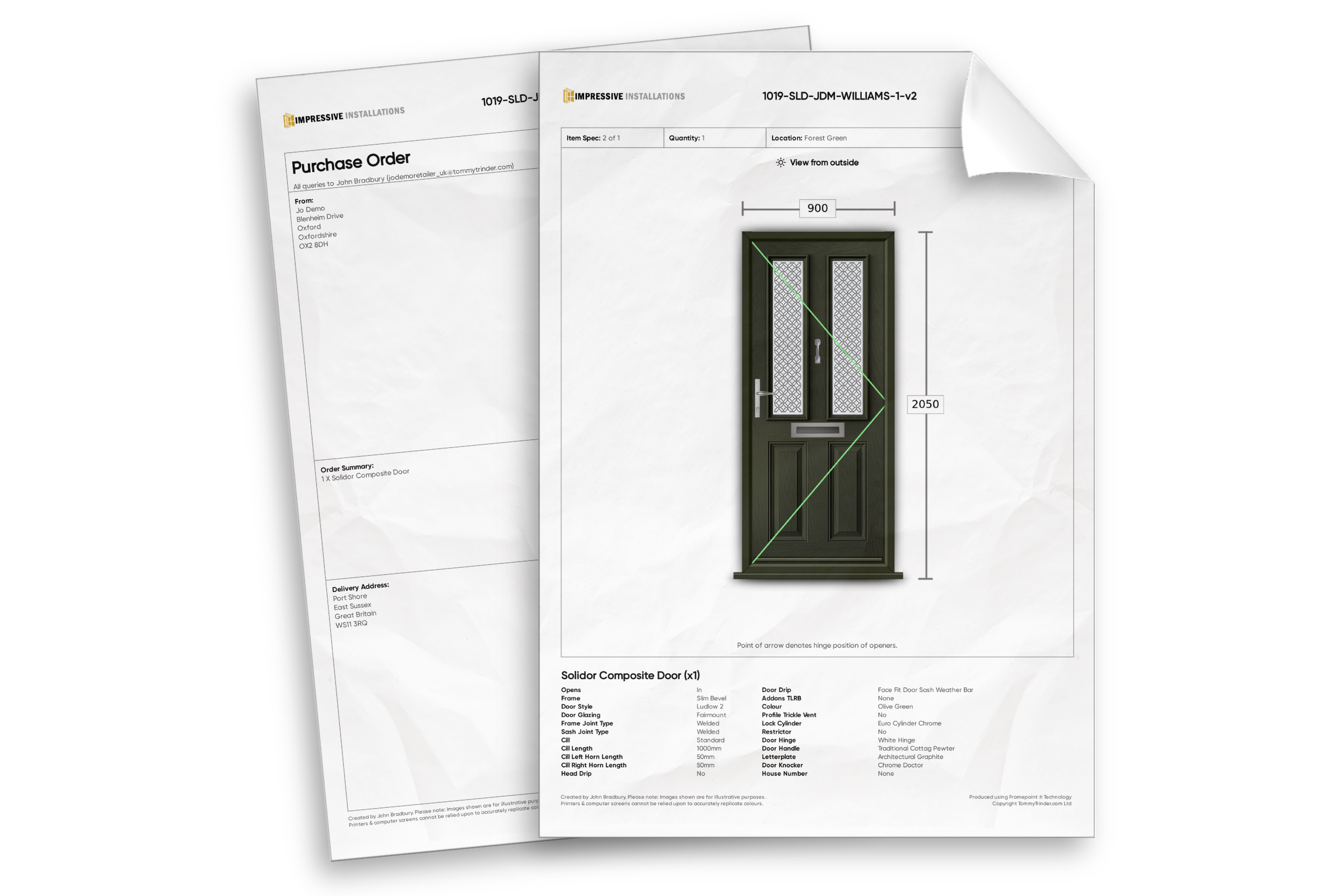
Purchase order PDF from Tommy Trinder showing a composite door with sizes

‍This is the first in our "Did you know?" series, short tips on Tommy features that save you time.

Download .PDF

Create Purchase Orders in Minutes

Window and door installers can raise purchase orders for all their suppliers straight from the quote in a few taps. No redrawing or re-keying means fewer costly mistakes.

To raise a purchase order (PO) in Tommy Trinder, open the approved quote and click Start Order. Choose the items for each supplier, add your delivery details, then download the PO as a PDF or send your supplier a link. It works for every supplier you use.

One of our subscribers, a proper Tommy pro, told us something that stopped us in our tracks. He thought the Start Order button was only for preset suppliers like Bereco, Roseview and AWG. So for every other supplier, he'd been doing his POs the long way.

When we showed him he could raise POs for all his suppliers from the same button, it was a bit of a revelation. If he didn't know, plenty of you might not either, so here's a quick how-to.

‍

What Start Order actually does

Once you've sent the quote and your customer has approved it, the quote is locked and you're ready to generate all the other paperwork you need for the job.

Clicking Start Order opens up a new screen where you can either select all the items in the quote, or split them if you're using multiple suppliers.

Click Start Order to generate a purchase order

Once you've added the items, hit Create Order to add all the important info like the delivery address and date plus any special notes, and bingo, your purchase order PDF is now ready to download and send to your supplier (or you can simply send them the link).

Order screen in Tommy with delivery information and the purchase order PDF

‍Save time, minimise error

If you’re typing up a PO for each supplier on every job, you’re redrawing and re-keying the same details over and over. It’s slow work, and it’s easy to make mistakes. One missed detail can cost you dearly further down the line.

For the manufacturers in Tommy like Roseview, Bereco and AWG, you have a further option to send the purchase order directly from Tommy, saving you even more time!

Purchase order PDF from Tommy Trinder showing a composite door with sizes

‍This is the first in our "Did you know?" series, short tips on Tommy features that save you time.

More from Tommy's Toolkit

Affordable plans with no big outlay.

And we can have you set up in minutes!

#SellMoreWindows